
Workouts
How do I use the rest timer and notifications?
Define a rest time for an exercise and check permission for timer alerts.
Set a rest time for an exercise
In an active workout, open Add Rest Time from the exercise's three-dot menu and select a duration. Use No rest time to remove a defined duration.
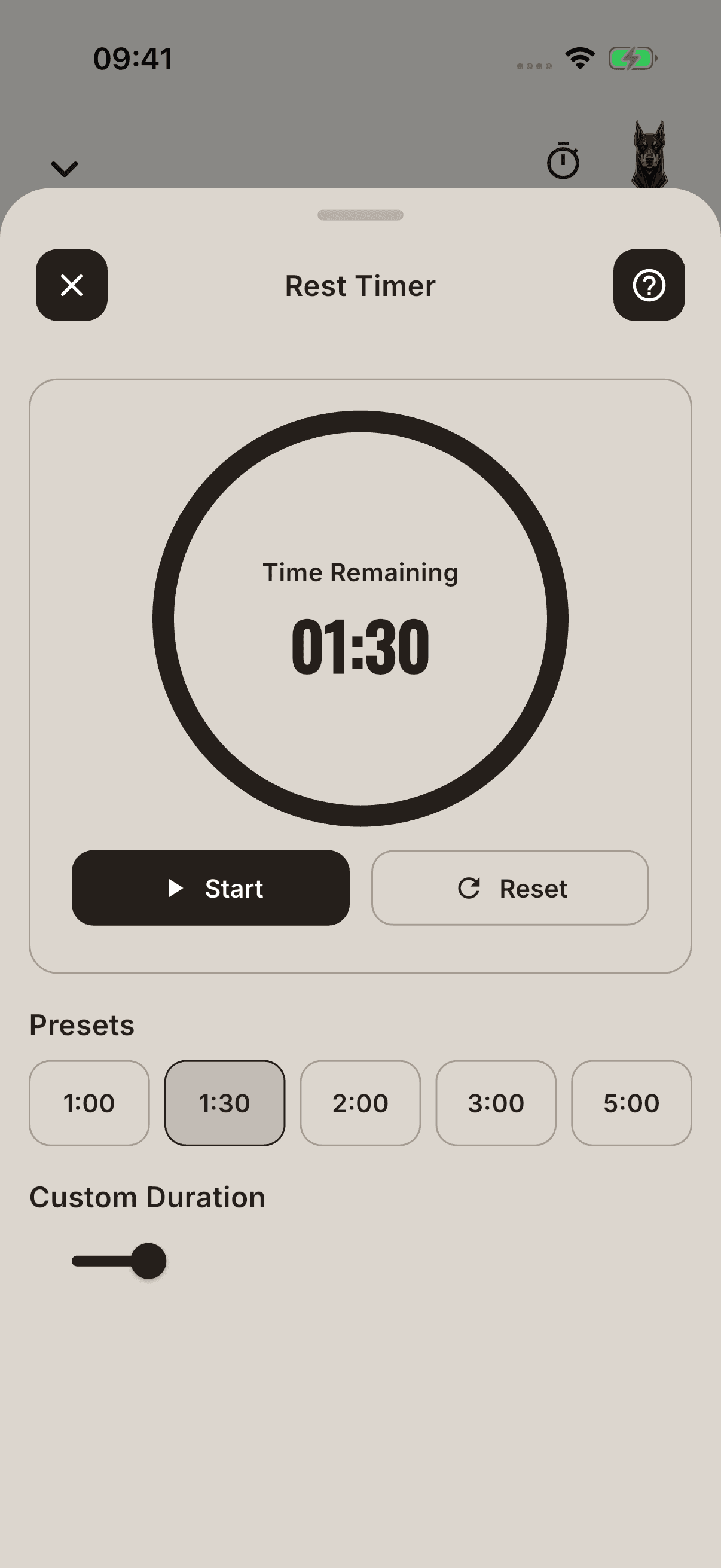
Marking a set with a rest time as complete during an active session starts the countdown. If no duration is defined, the automatic timer does not start. Marking sets while viewing or editing history does not start the rest timer.
Use the timer manually
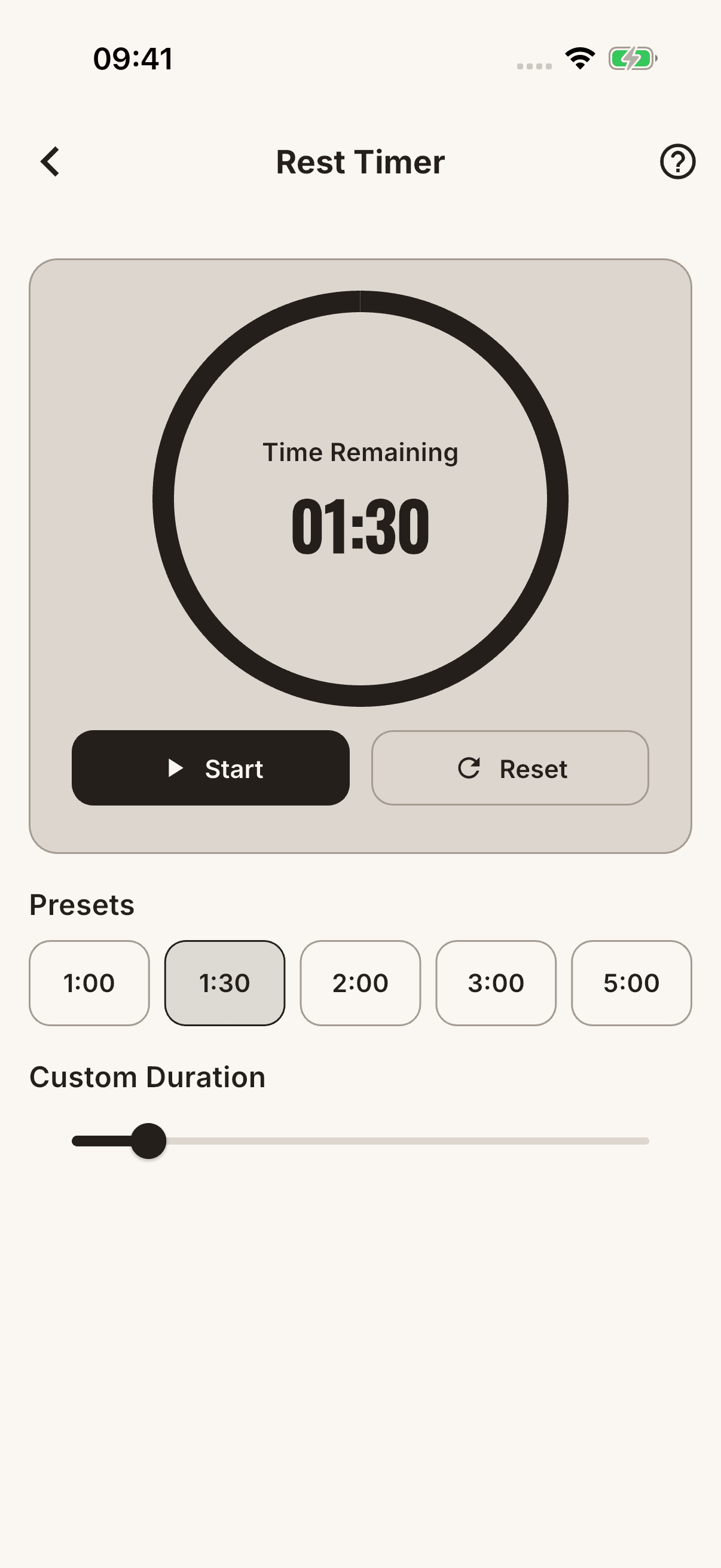
On the Rest Time screen in Tools, choose a preset or custom duration and use Start, Pause, and Reset. This tool does not mean that a default duration has been selected in Settings.
If notifications do not arrive
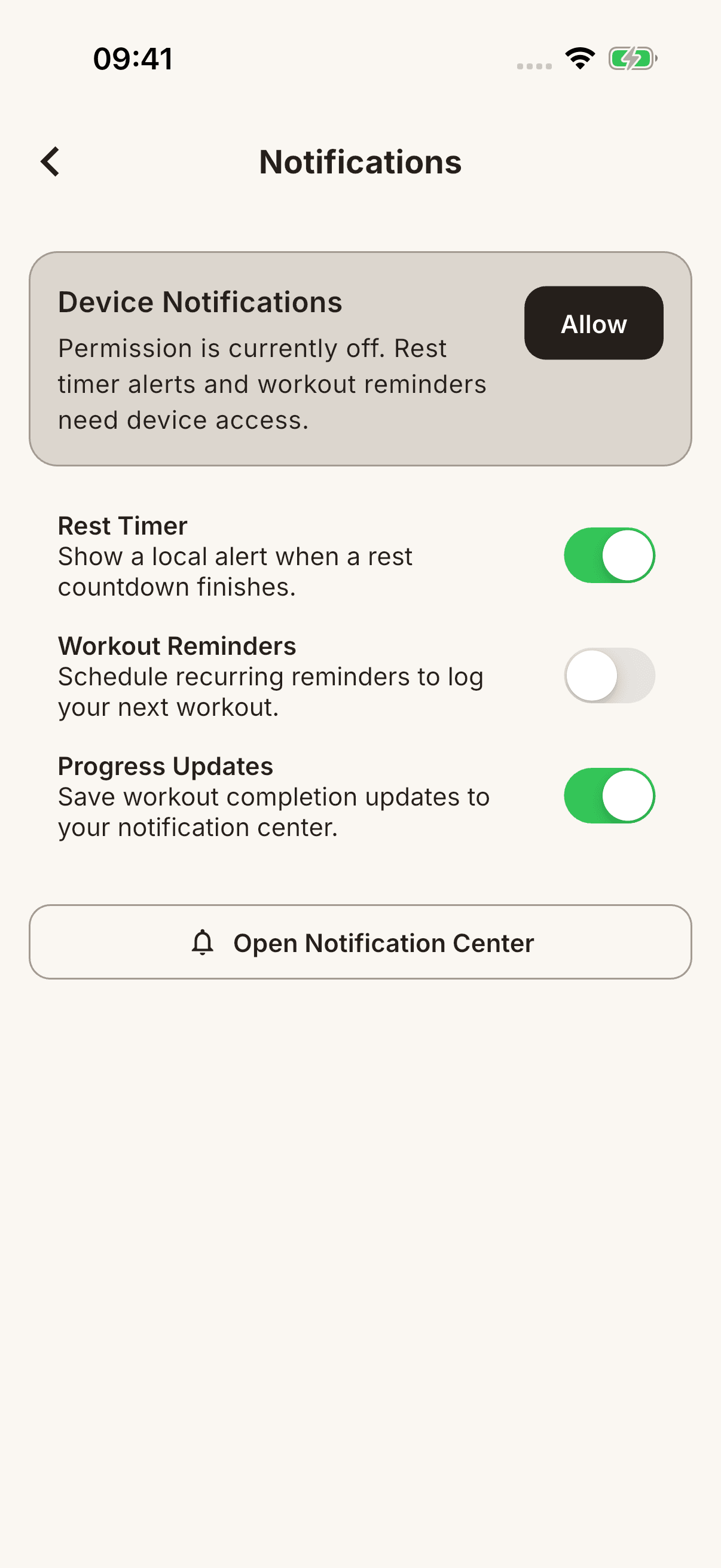
In Settings → Notifications, check both Device Notifications permission and the Rest Timer option. If device permission or timer notifications are off, seeing the countdown on screen does not mean you will receive an alert. Follow the permission warning shown by the app.