

Account and data
How do I change my email address or password?
Use the email and password management options supported by your account.
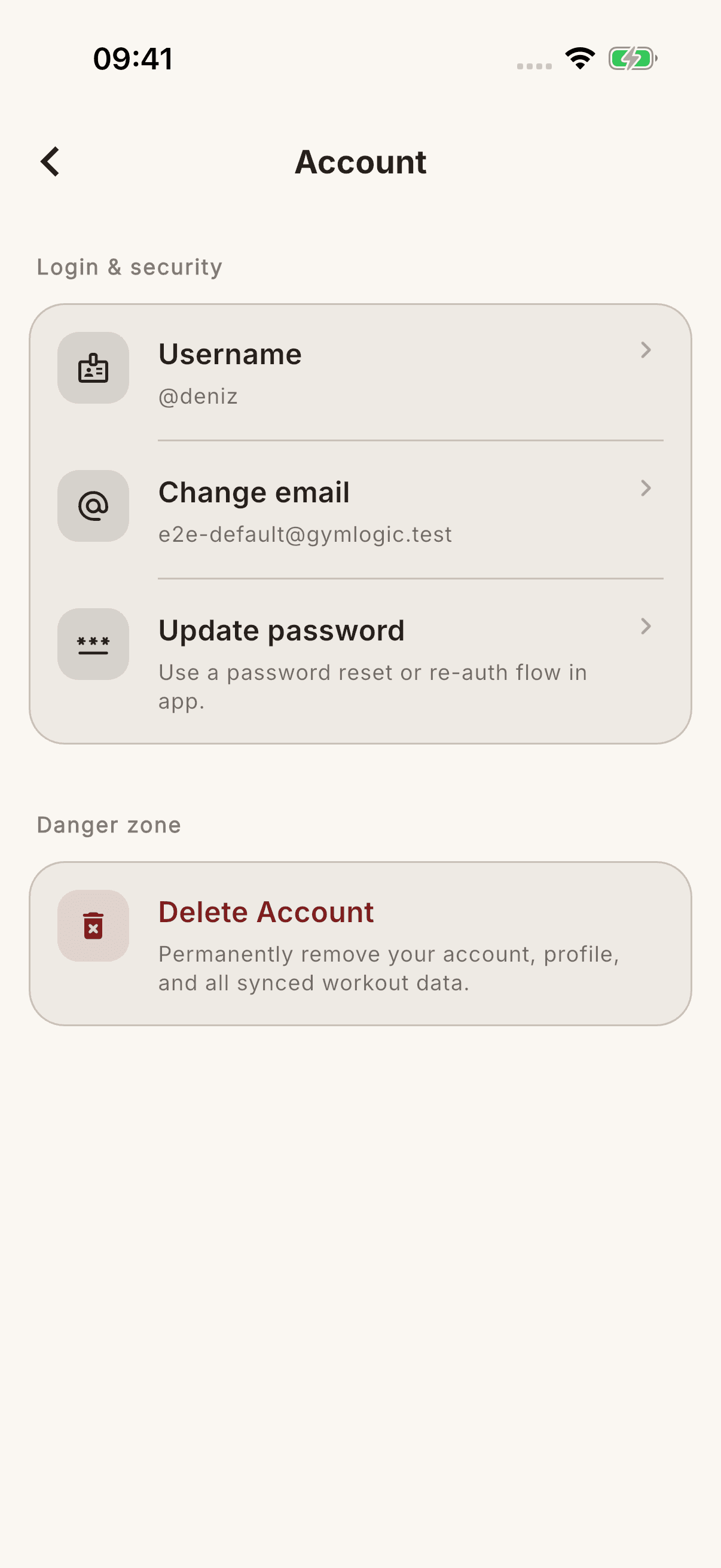
Settings → Account shows actions supported by your account's sign-in method. Not every account has every option.
Change your email address
- Open Change email address if it is available.
- Enter the new address and tap the button with the same name.
- Follow the confirmation link sent to you.
Submitting a request alone does not change the email address; the current address remains valid until verification is complete. Follow the confirmations requested by the screen and email. Separate confirmations may be sent to your old and new addresses.
If the open session still shows the old address after confirmation, first check that sync has finished. If there is no pending-data warning, sign out and sign in with your new address; continue reauthentication with the current account details.
Change your password
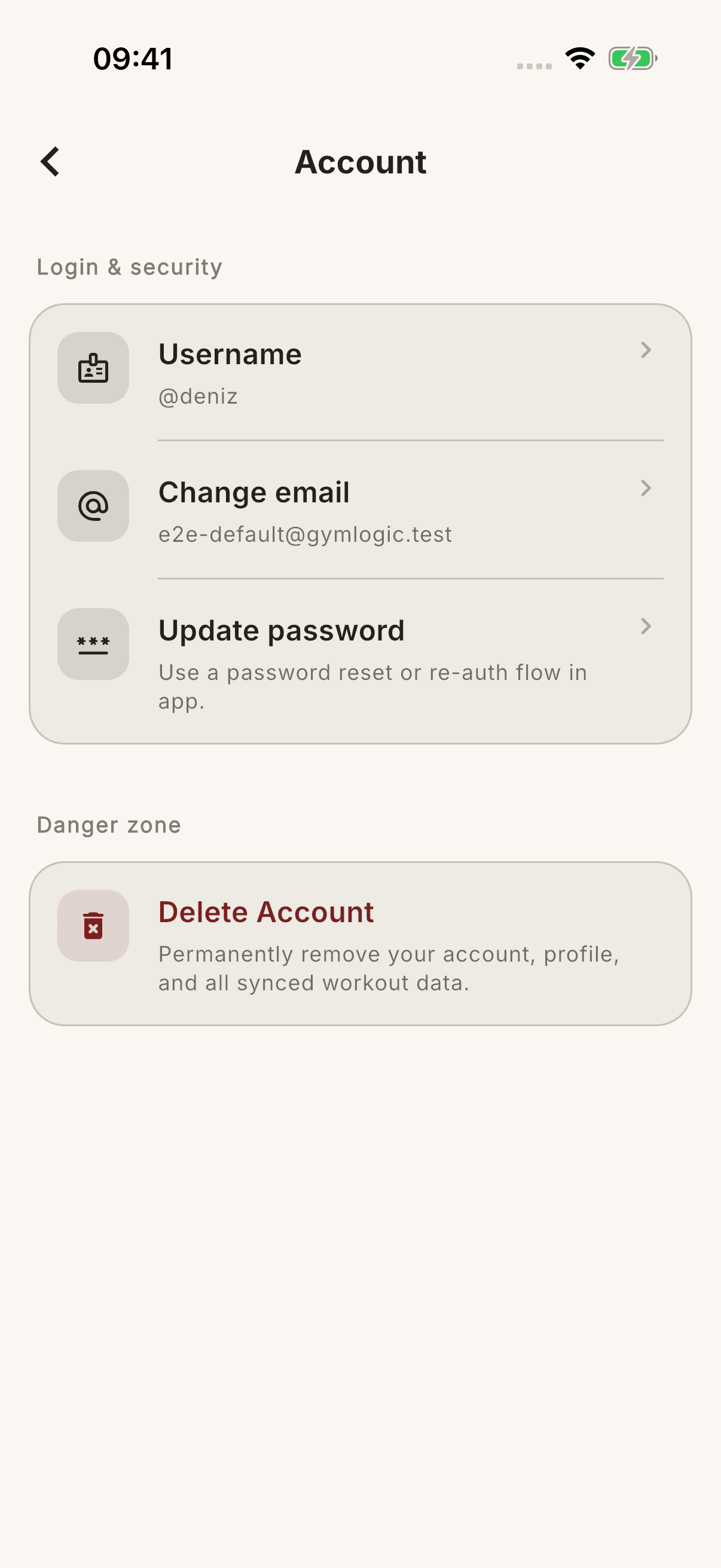
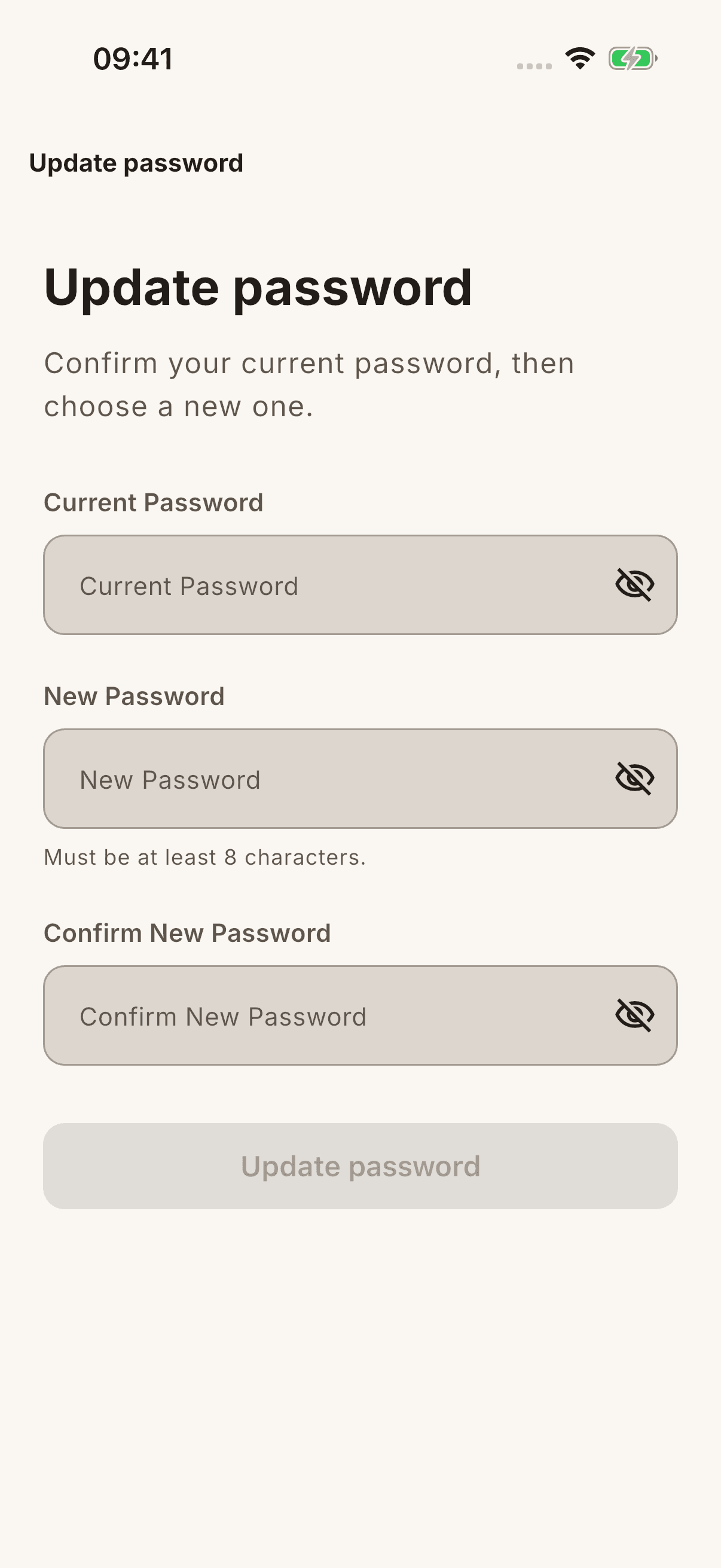
- Open Update password.
- Enter the requested current password, a new password of at least 8 characters, and the new password again.
- Complete any requested security check or email verification code.
- Check for the successful-update message.
For supported accounts without a password identity, the screen may offer Send Reset Link instead. Do not assume the process is the same for every account using Apple/Google sign-in; if an option is missing, check your provider account and the explanation shown by the app.