

Workouts
How do I finish an active workout?
Review unfinished sets, complete the session RPE step, and check the saved record.
Save the workout
- Check the checkboxes on the right of the sets you performed.
- Tap Finish at the bottom of the screen.
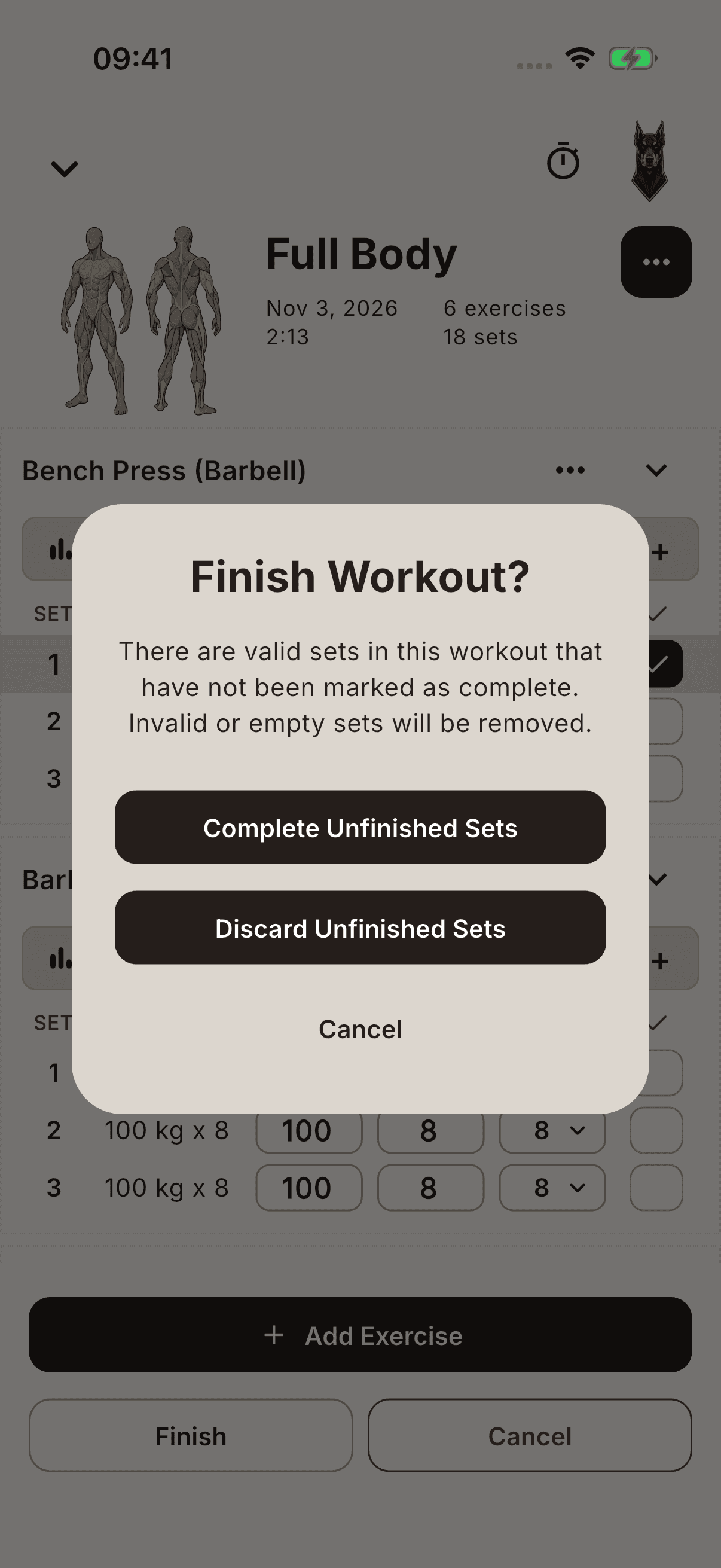
- If valid sets remain unticked, choose Complete Unfinished Sets or Discard Unfinished Sets. The first option is only for sets you actually performed. Empty or invalid sets are removed. Cancel returns you to the workout.
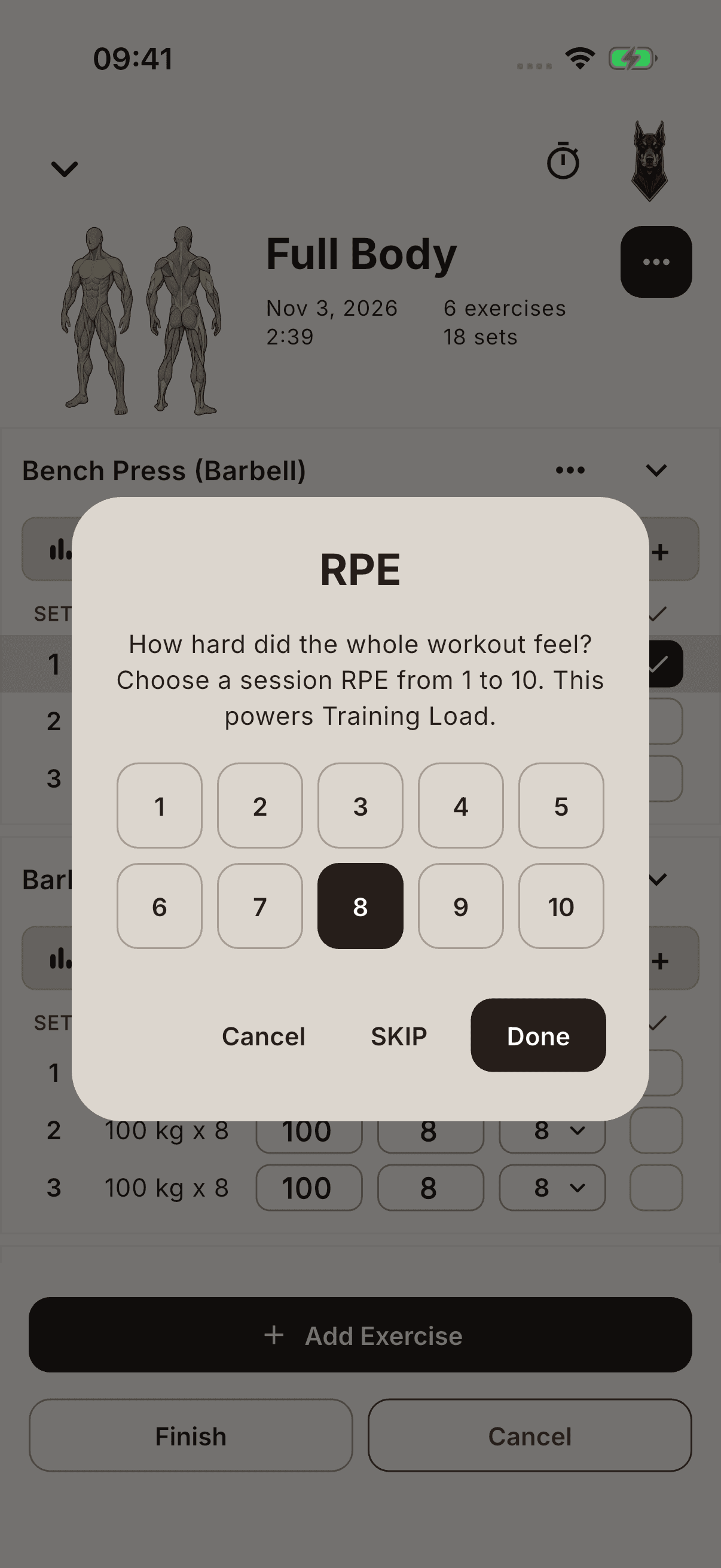
- In the RPE window, choose a value from 1–10 for the whole session and tap Done, or choose SKIP to continue without a value.
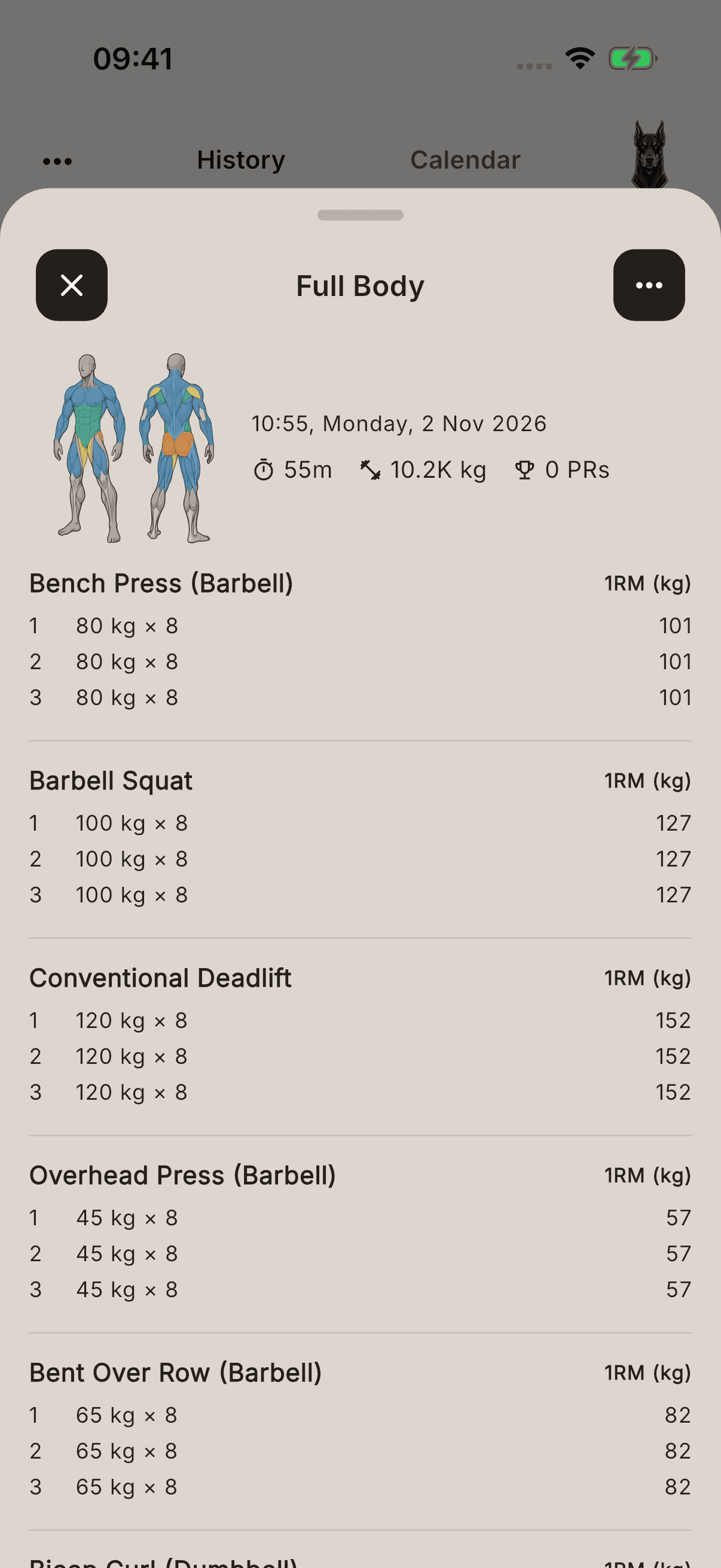
- Close the sharing screen with Done and check the record in History.
The RPE window opens every time you finish a workout; it is separate from your RIR/RPE setting for sets. Canceling this window does not save the workout. If you see an error message, do not assume saving has completed.
Discard without saving
Canceling the active workout opens the Cancel Workout? confirmation. Choose Continue Workout to continue, or Cancel Workout to discard the session.
Warning Canceling a workout and canceling the RPE window are different actions. Canceling the workout leaves that active session unsaved. Do not use it for troubleshooting.