

Workouts
How do I view or edit a past workout?
Find past sessions, correct sets, and save the changes.
Open the record
Go to History using the calendar icon in the bottom bar. Tap the workout on the relevant date to open exercise and set details.
Correct the record
- Choose Edit Workout from the workout's options menu.
- Edit the sets and exercises you want to change.
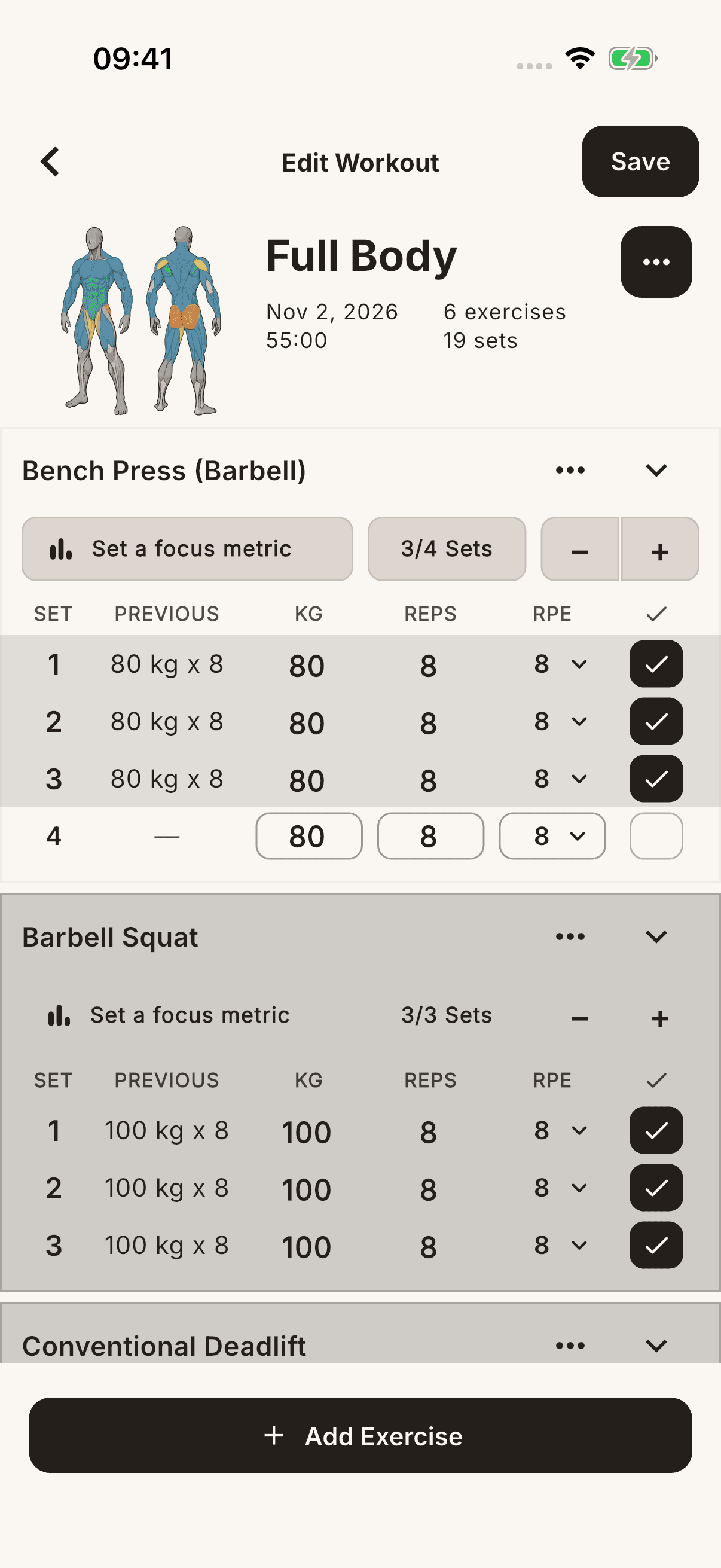
- Tap Save in the top right. In the Save workout? confirmation, read the explanation that invalid, empty, or unticked sets will be removed, then confirm with Save.
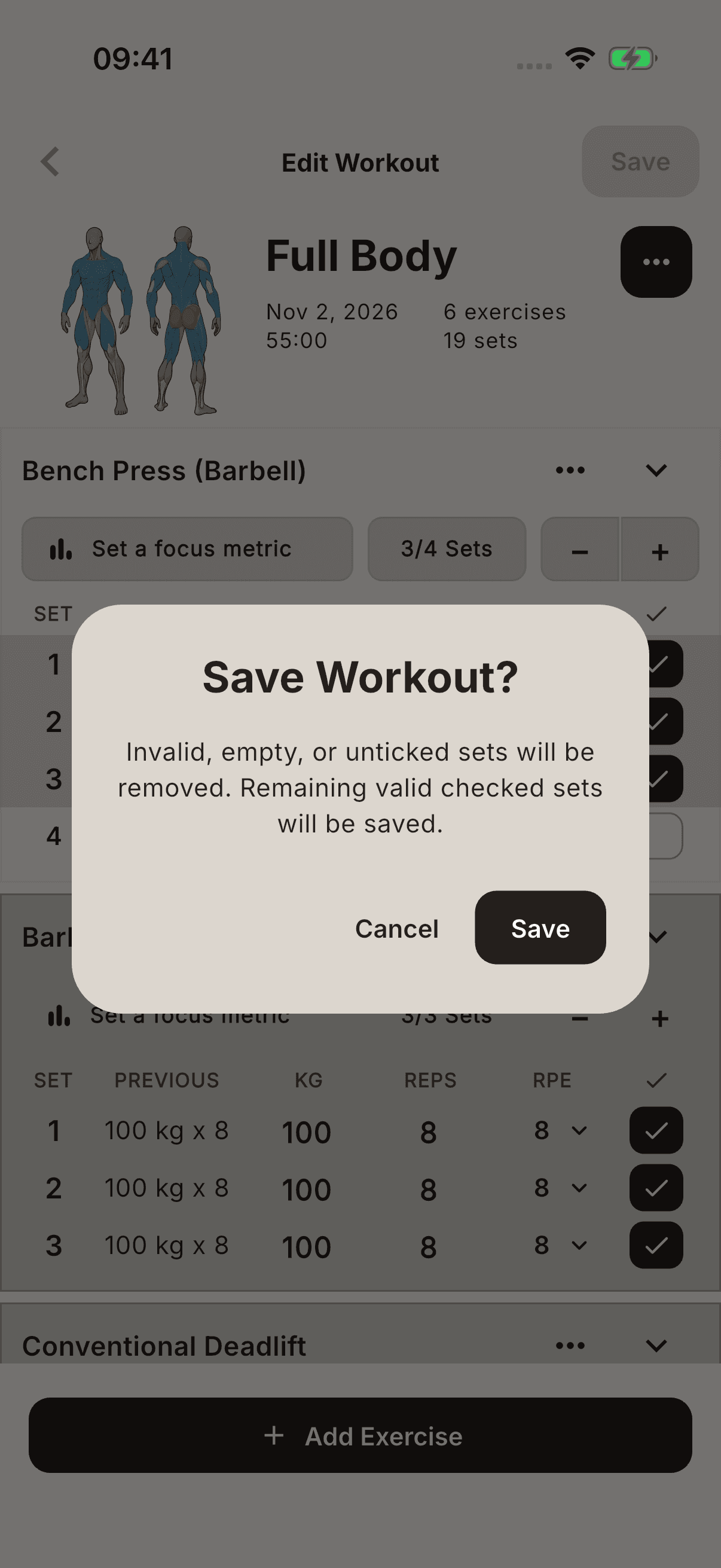
Editing history is different from the Finish flow in an active workout. When leaving the record, read any prompt about saving or discarding changes; do not assume that closing the screen saves your edits.
Deletion and analytics
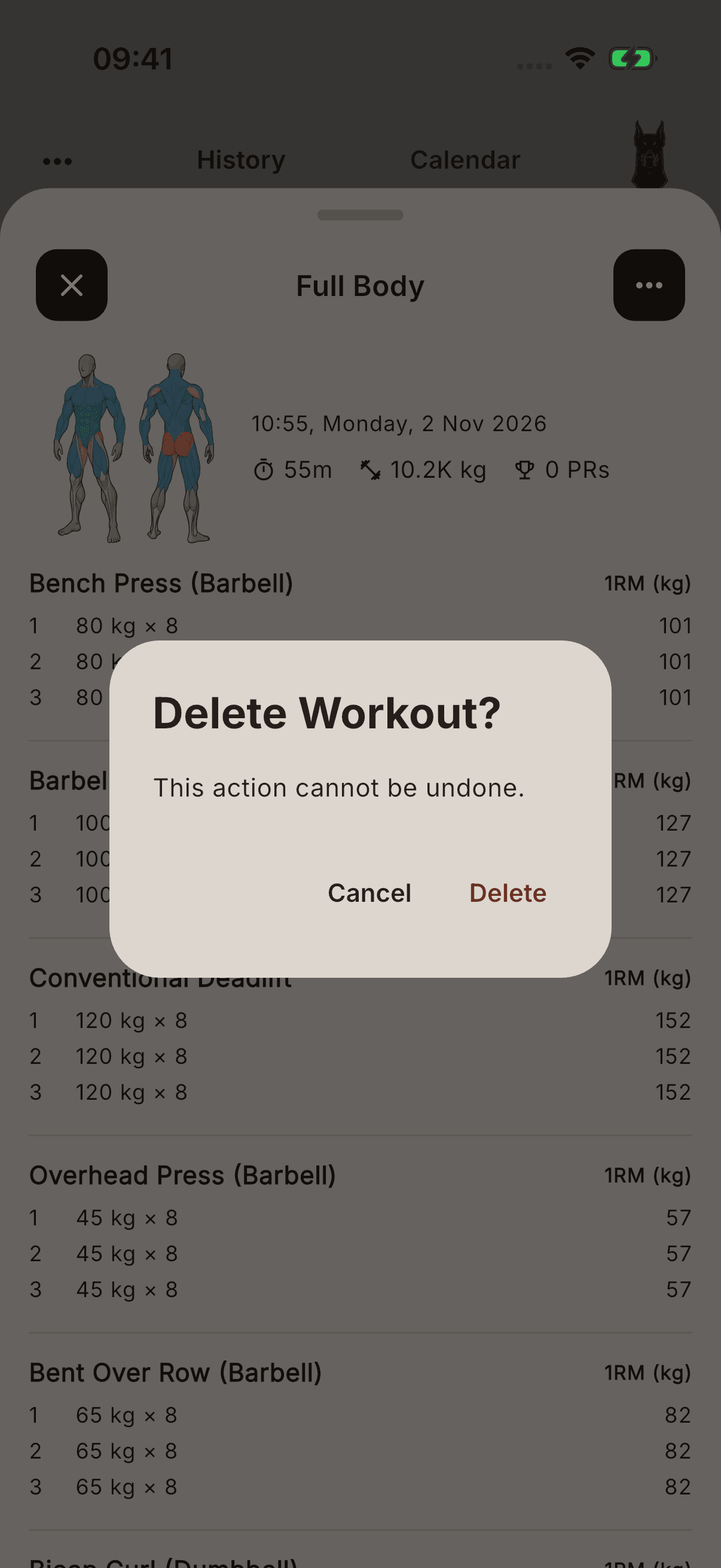
Warning Confirm Delete only when you really want to remove the record. Deleted or edited sets may affect volume, records, and other analytics based on those entries. There is no guarantee that every metric will change in the same way.
Seeing a workout in history is not, by itself, proof that it has synced to another device. If a record is missing, check your connection and account identity before signing out or deleting the app.