

Data transfer
How do I import Strong data into GymLogic?
Select the Strong CSV, check the weight unit and preview, then import.
Before you start
Keep an original copy of the CSV exported from Strong and put it somewhere accessible through the iPhone file picker. The file-size limit is 25 MiB.
Import steps
- Open Settings → Export and Import Data → Import from Strong.
- Tap Select CSV File.
- In Weight unit in CSV, check whether your file uses KG or LB. This choice matters if the file does not explicitly state the unit.
- In Preview, review the workout, exercise, and set counts and the date range.
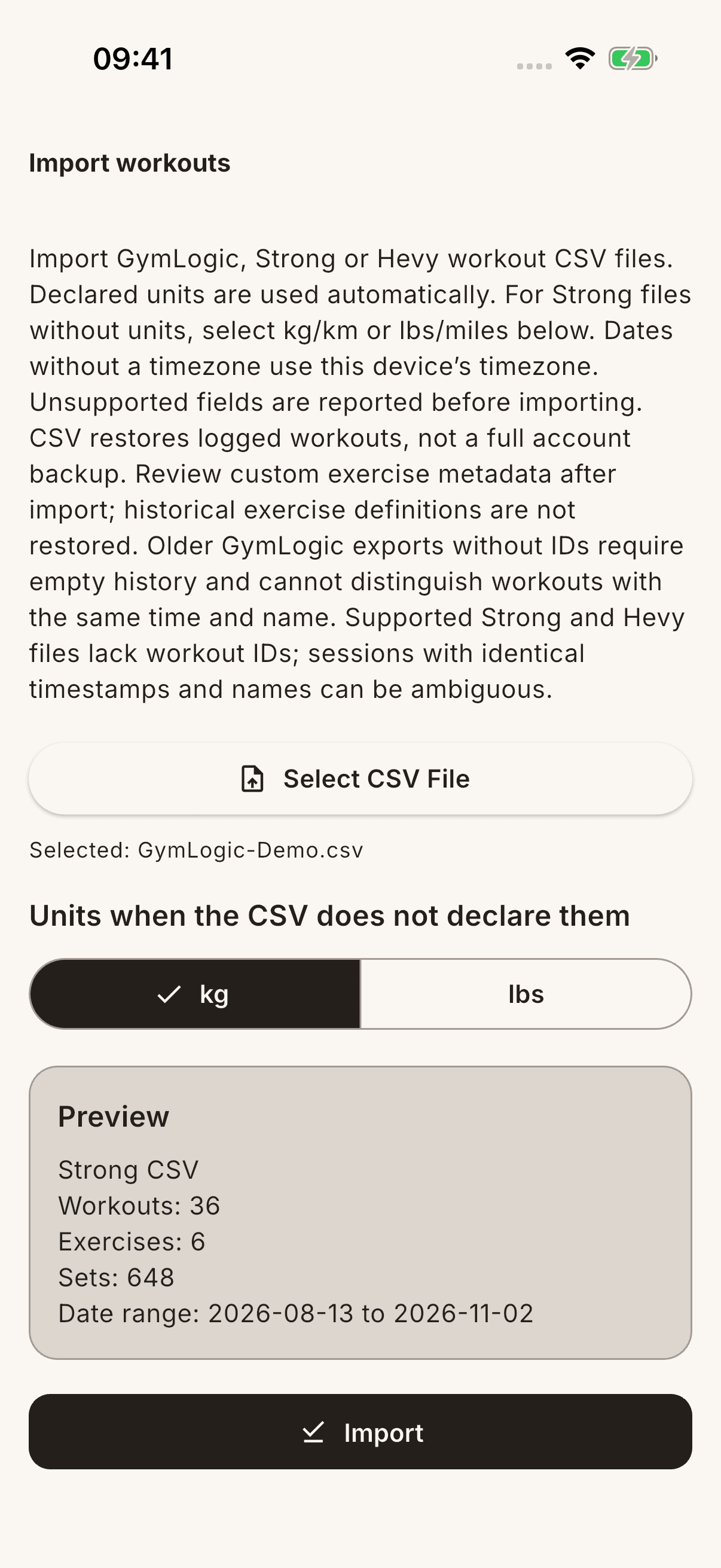
- Tap Import and wait for the result.
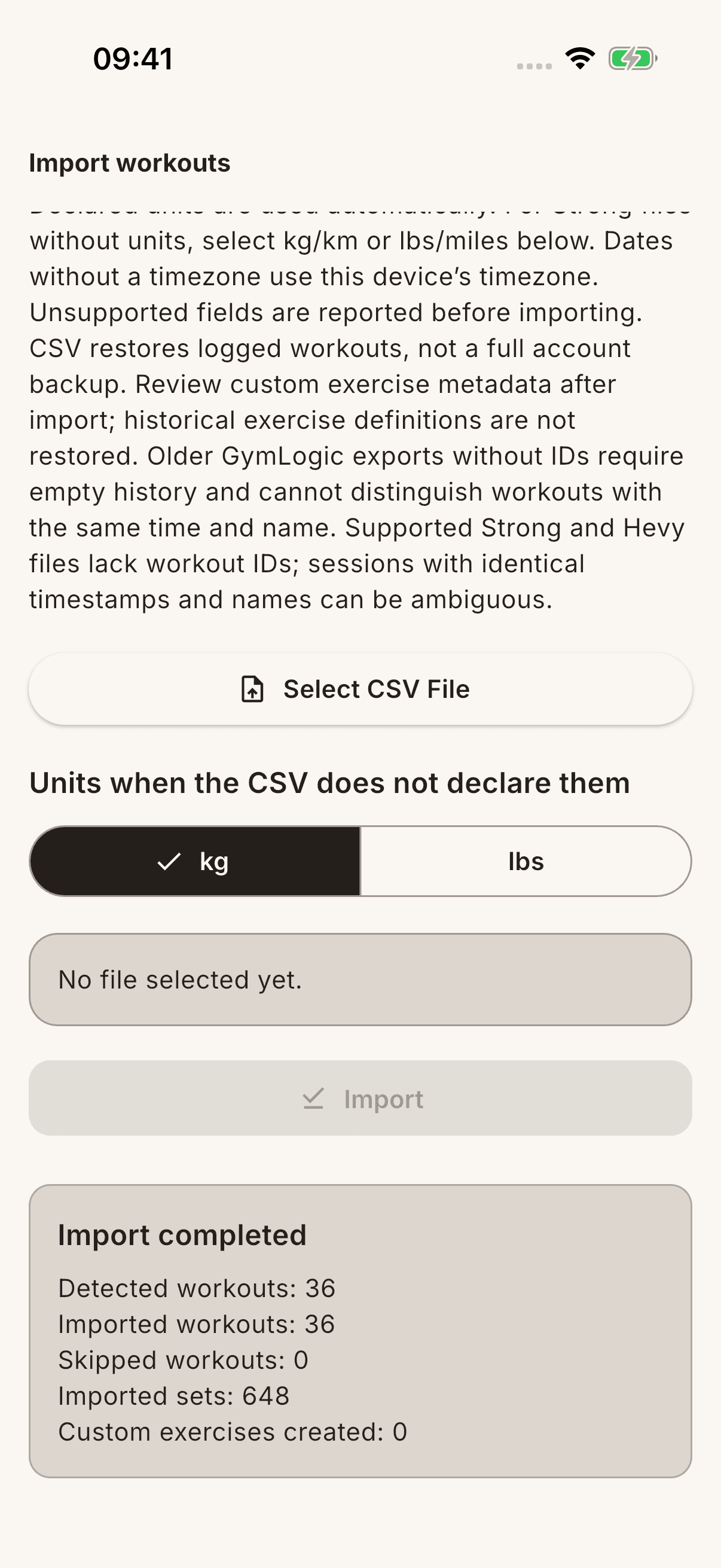
- On Import complete, check the detected, imported, and skipped workout counts. Review sample records in History.
What happens if I upload again?
Workouts previously imported from the same Strong record may be skipped. Sharing a time or name alone is not enough to make every workout a duplicate. Do not repeatedly upload the file without checking the result counts.
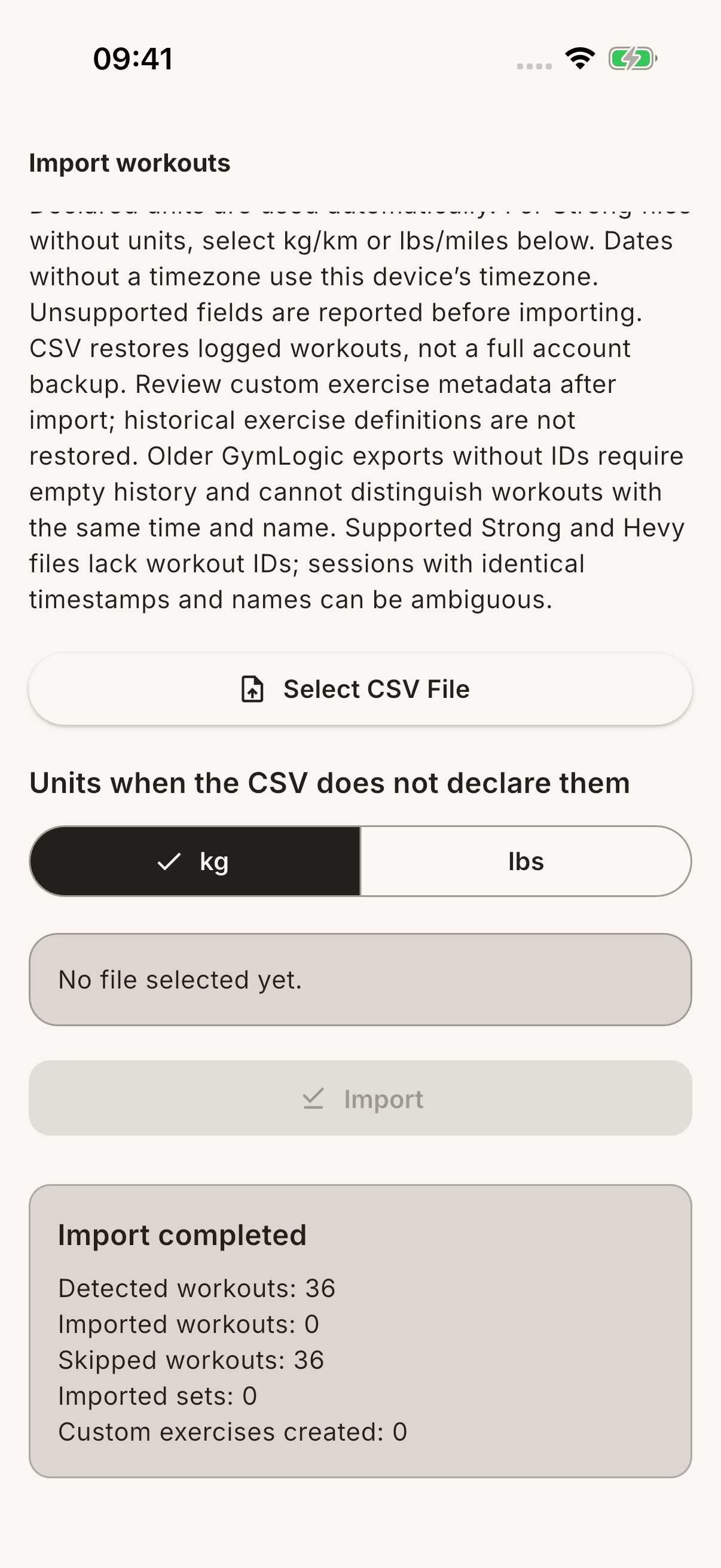
Unmatched movements may be created as custom exercises. The local import result does not mean all data has synced to the cloud.