

Account and data
How do I export GymLogic data as CSV?
Learn the difference between the workout CSV file and the broader account ZIP archive.
Open the export screen
Settings → Export and Import Data offers two separate exports:
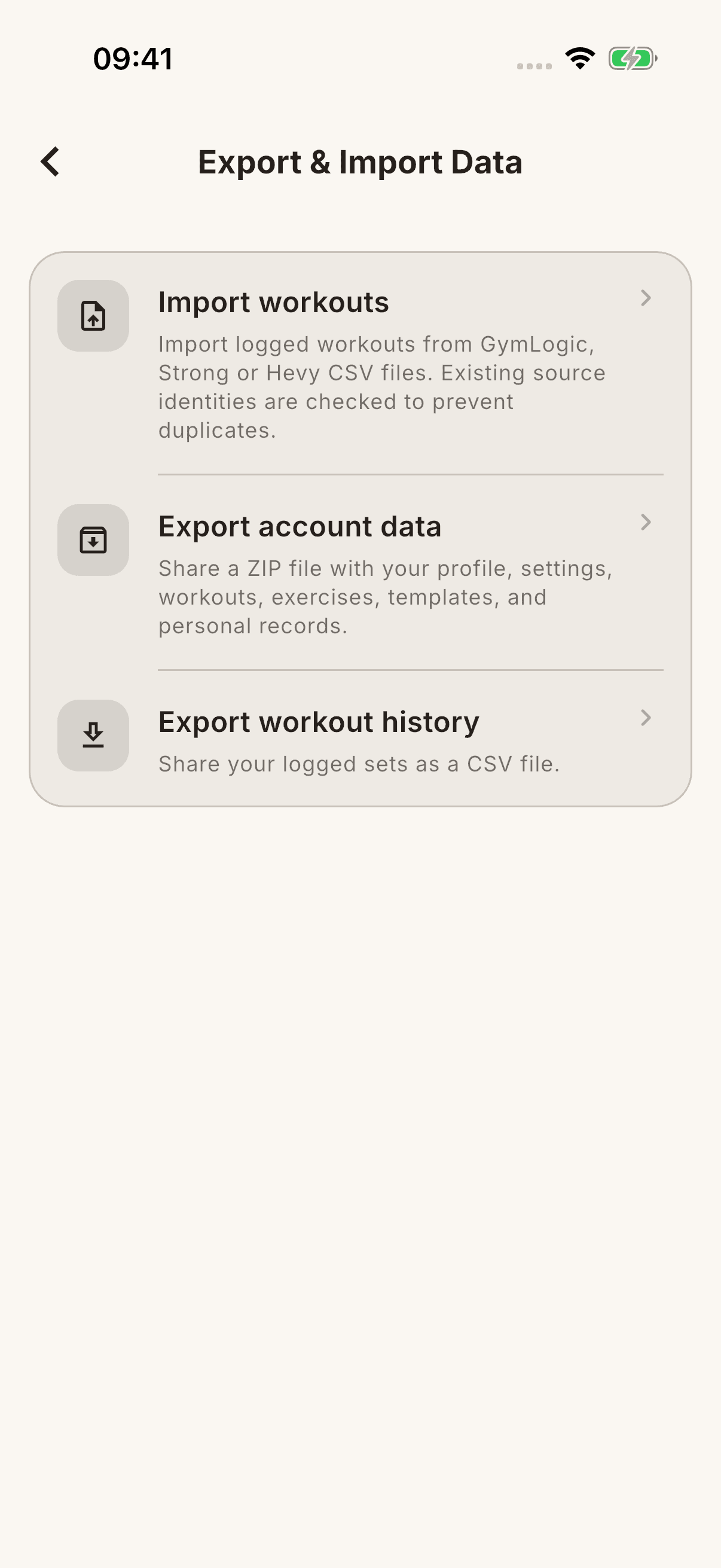
- Export workout history: Shares saved workout sets as CSV. It includes fields such as weight and unit, repetitions, duration/distance where applicable, and notes. It is not all account data.
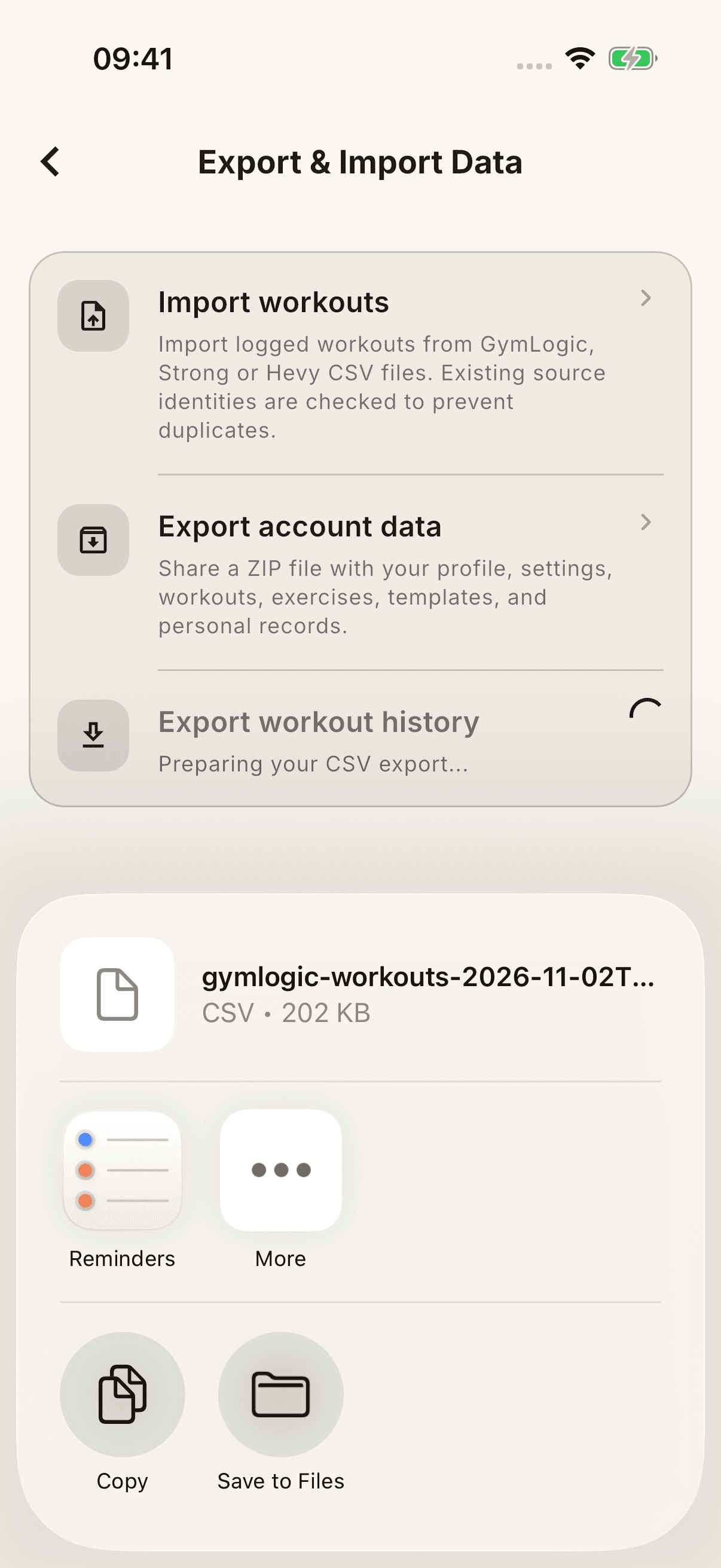
- Export account data: Collects account data accessible on the device, such as profile, settings, workouts, custom exercises, templates, personal records, and measurements, into a ZIP archive. The archive also includes a workout CSV. Security information such as sign-in tokens is not exported.
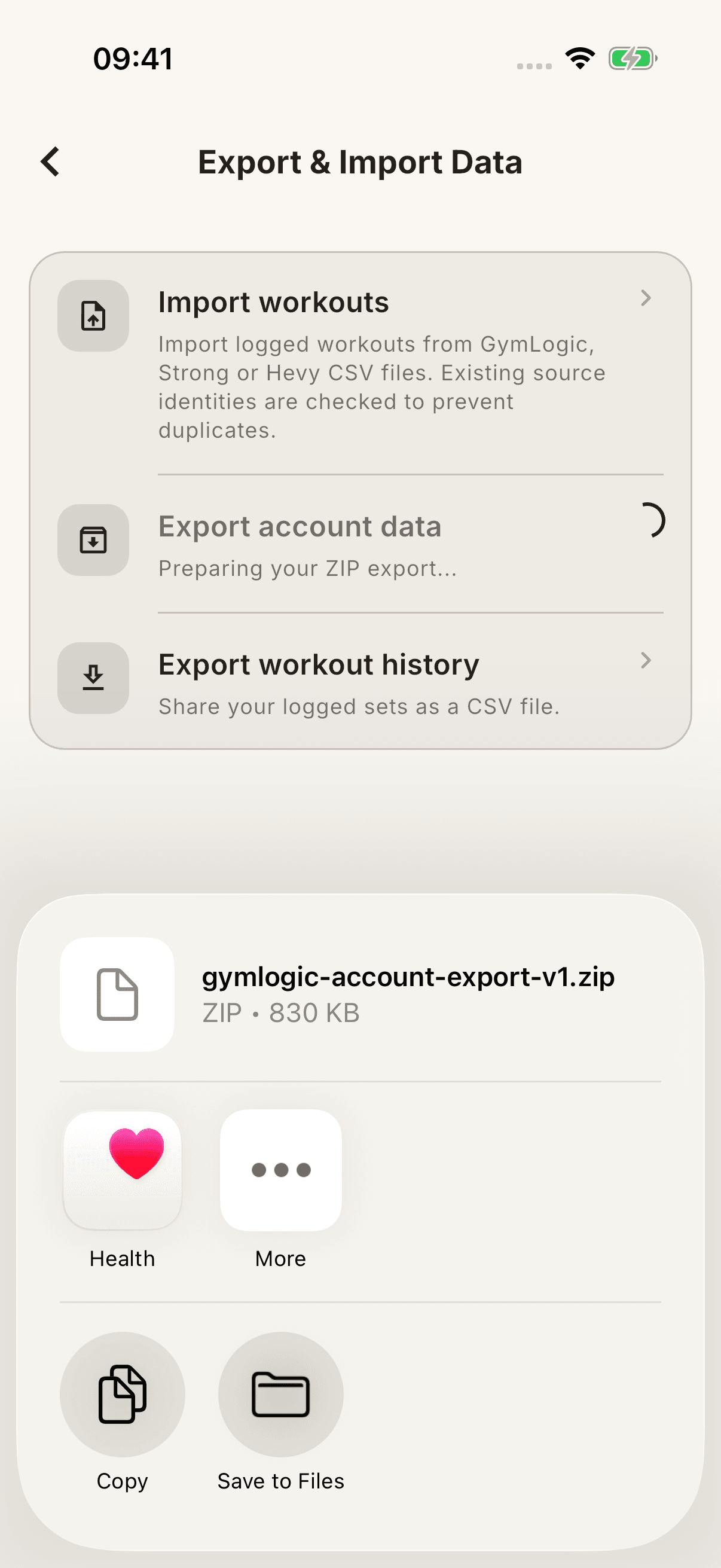
Tap the option you want. When preparation finishes, use Save to Files (or its equivalent in the device language) in the iOS sharing screen. Select a destination folder and tap Save. Opening the sharing screen alone does not confirm that the file is stored at the destination you selected; check the saved file.
Important These files are not presented as a full backup of all server data or a one-step restore package for the whole account. The Strong import flow is not a tool for restoring the account ZIP either.
If an error occurs
There may be different causes, such as no saved sets for the CSV or a failure to read data. Note the error message; do not try to fix it by deleting the app. The file you share may contain personal workout and account information.